1. Connect Raspberry Pi to a computer monitor with DMT

    On Raspbian, using a HDMI to DVI-D cable tvservice cannot detect any possible EDID combination and defaulted to 640x480 with unnecessary overscan. Upon running
    tvservice -d edid
    you get "nothing written".

    So you'll have to refer to the table here and use the correct EDID combination and stick it into the /boot/config.txt file.

    Next open up the /boot/config.txt by typing

    sudo nano /boot/config.txt
    and uncomment (removing the #) hdmi_group and hdmi_mode and set them to the correct values. For computer monitors which uses DMT, the hdmi_group=2, while for TVs, which uses CEA use hdmi_group=1. For example, for our purposes we use the following combination DMT output with 1920x1080 60Hz resolution.
    hdmi_group=2
    hdmi_mode=0x52
    Then disable overscan by uncommenting disable_overscan=1. After that press CTRL+O and press enter and then CTRL+X to exit the editor, and finally type the following to put the resolution in effect.
    sudo reboot
    Continue reading »
  2. Recover passcode from an iPod touch.

    Prerequisite (Important)

    • Make sure your Windows user account name has no space in them. (e.g. "John Stewart" will cause redsn0w to fail to parse the directory string and giving the "unexpected parameter error") If you are using such account, create a new account with no space in them and work in it.
    • iTunes must be installed in order for the software to detect the iPod in DFU mode.
    • Version of Windows does not matter (32/64-bit, Windows 7 or Windows 8 or Vista or whatever)

     Steps

    1. Download Gecko iphone toolkit.
    2. Run it, and select your idevice's name and click boot.
    3. Note down the required ipsw file name in the pop up and close the browse window.
    4. Go to http://ipswdownloader.com/download-ipod-ipsw-files.php and download the corresponding ipsw file.
    5. Turn your ipod off, and plug it in to your computer.
    6. Go back to Gecko iphone toolkit and click boot, and select the downloaded ipsw file.
    7. Follow the instructions displayed.
    8. You're basically done.
    I have done the above steps and successfully recovered the passcode for an iPod touch 4th gen on a Windows 8.1 computer. If your device is not listed in the Gecko iPhone toolkit list, please consult Google.

    
    iPod touch 4th gen on the key recovery stage


    Continue reading »
  3. What to do with a VPS

    Now you got them spanking new VPS. What should you do with them (if you are not a developer)?
     
    1. Seedbox - high availability high speed torrent client
    2. VPN Server - exist as someone your VPS is located
    3. HTTP server

    To access your VPS in a command line environment, you need a SSH client like PuTTy, and use it to connect to your VPS with your VPS's public facing IP address.

    Setup Seedbox

    We'll be using uTorrent. Assuming you're using Ubuntu and logined as root.
     
    1. Go to http://www.utorrent.com/downloads/linux and click on the corresponding Download Now. At the download page, copy the "Click Here" link.
     
    2. At the SSH console, type this.
    wget <copied link>
    3. Type
    ls -l
     4. You should see something like this
     root@server:/home# ls -l
    total 9212
    -rw-r--r-- 1 root root 2246586 Nov  5 13:09 index.html
     Rename the file by typing
    mv index.html ut.tar.gz
     Then untar the whole thing by typing
    tar xzvf ut.tar.gz
     Type ls -l again and  the file should be untarred.
    root@server:/home# ls -l
    total 9212
    -rw-r--r-- 1 root root 2246586 Nov  5 13:09 index.html
    drwxrwxr-x 4 1000 1000    4096 Dec 26 02:42 utorrent-server-alpha-v3_3
    5. Create a folder that will contain your torrent files and torrent by typing this
    mkdir /home/torrent
    and
    mkdir /home/torrent/temp
     
    6. When you're done, cd into the untarred folder by typing
    cd utorrent-server-alpha-v3_3 (or whatever name the untarred folder is)
    7. There, to start the client, type
    ./utserver
    The console will show nothing. Relogin to your VPS by duplicating the session or creating a new session.
     
    8. Connect to uTorrent by typing this to your web browser
    http://<your vps ip address>:8080/gui 
    the username is "admin", password is blank.
     
    Next, click on settings (green wrench) and under enter these.
     
     
    You're set to download/seed!
     

    Setup L2TP/IPSEC/OpenVPN/MS-SSTP VPN

    The easiest method to do this is use softether by Tsukuba University. Assuming you're using a 32-bit Ubuntu.
     
    1. Get the dependencies to build softether
    apt-get update
    then
    apt-get install build-essential -y
    2. Get the softether server software by typing
    wget http://www.softether-download.com/files/softether/v2.00-9387-rtm-2013.09.16-tree/Linux/SoftEther%20VPN%20Server/32bit%20-%20Intel%20x86/softether-vpnserver-v2.00-9387-rtm-2013.09.16-linux-x86-32bit.tar.gz
    3. Untar it
    tar xzvf softether-vpnserver-v2.00-9387-rtm-2013.09.16-linux-x86-32bit.tar.gz
     4. cd into the untarred folder
    cd vpnserver
    5.  Build it
    make
    Agree and accept all terms and conditions.
     
    6. If the all the test passes, which is shown during last phase of build, type this to start the VPN server.
    ./vpnserver start
    Note: The network test does not necessarily needs to be passed. If your VPS has unrestricted access to internet and has a public IP address, the VPN should work.

    7. Download VPN server manager for Windows
     
    http://www.softether-download.com/files/softether/v2.00-9387-rtm-2013.09.16-tree/Windows/SoftEther%20VPN%20Server%20and%20VPN%20Bridge/softether-vpnserver_vpnbridge-v2.00-9387-rtm-2013.09.16-windows-x86_x64-intel.exe
     
    Choose to install the server manager.

    8. Fire the Server Manager software, and click New Setting. Enter your VPS's public IP address to the Host Name field, and leave the password blank and press OK. Click connect.

    You'll be prompted to enter a new password on first connect.
    You'll be asked to setup L2TP connection, all you have to do is click Yes to everything as it will be setup automatically.
    9. Click on "IPSEC / L2TP setting" and under the "IPsec Pre-Shared Key" field enter a password. Click OK when done.

    9. There is a hub called "DEFAULT". Click on it an then click on "Manage Virtual Hub"

    10. Click on "Virtual NAT and Virtual DHCP Server (SercureNAT)" and enable the SecureNAT. Exit the window.

    11. Click on "Manage Users". Select the Auth Type as Password Authentication. Enter the desired password and username. You can leave other settings as they are optional.

    You're set to connect to your VPN!
       
    Continue reading »
  4. Compiling LAME for Windows on Windows

    This procedure works, after trial and error from following this guide.Refined some steps.

    Get MinGW (if you didn't have)
    First and foremost, have MinGW running on your computer, by downloading the installer from here.


    Choose to download the latest repository catalogue, and choose to install the following components:
    - C compilier
    - C++ compiler
    - MSYS Basic System
    - MinGW Developer Toolkit

    After installation, open a MinGW shell by Start>All Programs>MinGW>MinGW Shell then type
    mingw-get install gcc
     then
    mingw-get install mingw-utils
    Test if your MinGW is working by typing.
    gcc -version
    Something like this should appear.


    Then, install the Yasm assembler for optimal compilation of LAME by going to here (Win32.exe) and putting the .exe to the bin folder of MinGW.

     Get source of LAME
    By going here.
    Extract the tarball using 7-zip or other decompression software and place it somewhere.

     Compile LAME
    At the MinGW shell, change working directory to the lame folder you extracted by typing
    cd C:/Users/username/lame-3.99.5
    Note the slash.

    Then, type this
    ./configure --prefix=/mingw --enable-export=full
     Then to start compile type
    make
    then
    make install
    The resulting .exe of LAME is located in the bin folder of MinGW (located at the place you installed MinGW)
    To make the .dll of LAME, for use as plugin in a lot of open source audio software,change directory by typing
    C:/Users/username/lame-3.99.5/libmp3lame/.libs
     then  use a2dll to make the dll by typing
    a2dll libmp3lame.a -o lame_enc.dll
    The .dll is located in the .libs folder.

     The Binaries
    If you just want the binaries and dll (for use in Audacity etc.), you can get them here.
    lame.exe
    lame_enc.dll


    Continue reading »
  5. Add connecting/snap-to points to any shape in Word

    In Microsoft Word there is no way you can add your own connecting points to shape through the interface, because the connecting points are an integral part of the shape (as explained by a MS MVP), unless I use Visio. But I just wanted to add connecting points. So... let's add some connecting points on our own.

    Firstly, in order for the connecting point to be enabled, you have to draw the shape INSIDE a drawing canvas. So make a drawing canvas first, by going to Insert tab, Shape.


    Draw a rectangle and say you want to snap a line to the rectangle, you see that the connecting points are very limited.


    To add more connecting points, we add curves to the line. This is because in curves, you can add points, which acts as our connecting points.

    Draw a 'straight' curve by clicking one edge and double clicking the other end to draw a 'straight' curve.
    Right click the curve and you can see that you can edit points.
    Click on edit points and you're in edit points mode. In this mode, right click on any point on the curve that you want to add point.

    No sweat.

    Try snapping a line to the rectangle.
    Great.

    To make sure that the curve and rectangle are 'together', hold CTRL and select the curve and the rectangle, right click one of the shape and group them together via Grouping>Group.

    Now you realize that, the curve method is only useful for 'adding' points to straight vertices, so how about other types of shapes?

    Say you want to add a connecting point to the side of a 'moon shape' first make a circle.

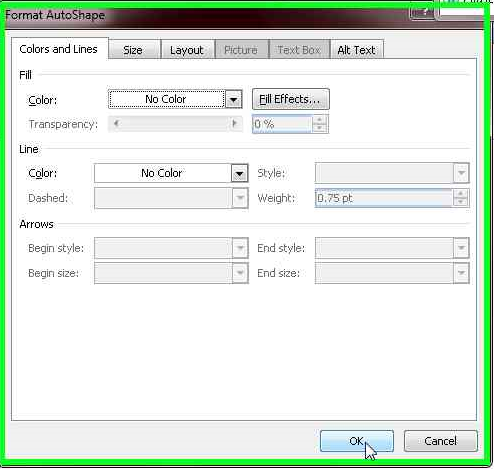
    Right click it and format it.


    and put everything as No Color.
    Now that you have an invisible circle, scale it to very small size and then move it to the point of the vertice where you want to add point, such that the vertice is tangent to the circle.

    Wohoo.
    Connecting points are useful when drawing lines to shapes because the line is 'stuck' to the shape when you move the shape around it is still connected. This is very useful say when you are drawing a circuit diagram with Word.
    Continue reading »
  6. Virtual Router/AP on Windows without extra software


    Virtual Router Switch uses netsh commands to control wireless hosted network feature on compatible Windows 7 computers. Due to use of native commands, no third party software needed, just download and run.

    The script can be downloaded here : vr.bat (right click and 'Save link as..')

    To enable Internet Connection Sharing on the virtual router, follow steps below

    1. Type "ncpa.cpl" in the search box in start menu and press enter.

    2.  At the Network Connections window, right click on the network adapter that has internet and select 'Properties'
    3. Click on 'Sharing' tab
    4. Tick the 'Allow other network users ...' and under Home networking connection, select the virtual AP you created.

    5. Click OK

    To unshare the connection, untick the 'Allow other network users ...'
    Continue reading »
  7. Remove that annoying low frequency chirp.

    If you listen to music on good speakers or headphones, you will, at times notice and hear chirping or ringing sound during quiet passage with bass or low frequency, such as a beat. It is annoying, but the problem does not lie in your sound card or headphones or sound system, it is Windows's fault. This problem is apparent in Windows Vista and up, as it's due to the misconfiguration of default audio settings and in my opinion shitty DSP of audiodg.exe.

    Anyway to get rid of the chirp, go to audio properties by right clicking the speaker icon on the task bar and select 'playback devices'.


    Double click on speakers and on the 'Speakers Properperties' dialog select the advanced tab. Under default format change the format to '16 bit, 44100hz (CD quality)'. Then click apply.


    You then ask why down grade to CD quality when DVD quality is better? No, higher sampling rate or numbers does not equal to better sound quality. It is a placebo increase in sound quality and introduces unwanted noise like the chirping. You have to understand that most audio you listen to are 44.1khz sampling rate and increasing the sound card's sampling rate isn't going to improve that.
    Continue reading »
  8. Alternate version of tracert on Windows (cmd)


    The tracert program that came with Windows seems to be useless at times. Just look at the shot on the right.

    Wrote a .bat script to overcome this problem, here.

    Feature of my version of tracert
    • Option for super fast tracing
    • Works 95% of the time
    Note: If you see duplicate address for a consecutive hop, it means it found a hidden router (which does not ping back)
    Continue reading »
  9. Dynamically reload a display driver without rebooting

    There are times when reloading a display driver is necessary, like say you crashed it and the driver stays in 'Safe Mode' where the graphics card is throttled to lower clock frequency and a reboot is necessary to snap the graphics back to full performance.


    This is quite troublesome when you are determining ceiling overclock frequency for your card as you have to reboot everytime the driver crash. A driver reload is faster than reboot as shown here.


    Driver reloaded.


    Continue reading »
  10. Control a laptop with fried graphics card/monitor.

    You turn on your laptop and what you get is that blank screen with colour slideshow and nothing else. You tried plugging it to an external monitor, but to no avail - 'no input signal'. You tell yourself :"weird? the harrdrive is reading and the logon chime.."

    Jump straight to steps
    Your laptop is indeed working, just that the monitor/interface has gone south. Naturally, you could try to tear your laptop apart and reseat the monitor connector or graphics card, check the board if you're using integrated graphics. If it worked after that, congrats, but if it doesn't, then.. This problem usually arises from broken graphics controller, and the color slideshow you see is probably the 'test mode' of the laptop monitor, because there is no output to the monitor.

    Sigh. Usually this problem can be mitigated on a desktop by replacing a new graphics card, but for a laptop is quite expensive since the graphics controller is integrated to the motherboard, WHAT TO DO? Buying an external USB video controller can do the job, they are cheap, or if your laptop has an external PCI port it's even better, because you can install an external desktop graphics card. But if you are not really into doing those things, and is planning to recover data or wants to access the laptop urgently, it is possible.. The Windows Remote Desktop Connection is one of the ways, but setting it up and getting it to work is almost impossible blindfolded, so there must be something better..


    UltraVNC makes a little software called 'Single Click' where you can preconfigure a Remote Desktop Server and run it on the broken laptop so you can access it on another computer.

    Instructions

    This step by step instruction helps you to control the broken laptop visually on another computer.
    Firsly make sure both computers are connected to a LAN, WLAN or some local IP network and can see each other on the network.

    1. Download UltraVNC on a working computer and install it. Run the vncviewer.exe with the -listen switch by creating a shortcut of the vncviewer.exe, right-click-properties it and adding "-listen 5500" to the end of the 'target' like this


    2. Download this, and open a file called 'helpdesk.txt' in the archive. Between [HOST] and [TEXTTOP] delete everything else and insert

    LAN connection
    -connect XXX.XXX.XXX.XXX:5500 -noregistry

    where XXX.XXX.XXX.XXX is the IP of the working computer.


    3. Save the text file, then delete a file called 'rc4.key' in the archive, then visit this site http://support1.uvnc.com/cgi-bin/upload4.pl and upload the .zip archive. The userid is 'foo' and the password is 'foobar'. Download the resulting .exe file and copy it to a flash drive.


    4. Plug the flash drive to the broken laptop, and try to run the .exe contained in the flash drive.
          Some techniques - Usually on a Windows 7 (assuming the broken laptop is using one) with autoplay on by default (also assuming it's on), the first thing that should appear on the broken laptop is the autoplay dialog with 'Open Folder to View Files' focused first after you plug in the drive. So a minute after you plugged in the drive, just press enter. After that press tab 3 times and you should be at the search bar. Type in the exact name of the .exe file you copied to the flash drive, if say it's called abcde.exe, type abcde.exe then press enter. After that press down twice and press enter, the .exe program should be launched (you should hear the du du sound of UAC). After that press left once and press enter.


    5. On the broken computer, try to 'feel' your way to the 'connect' button of the program.
           Some techniques - move your mouse at different places while left clicking once at each position until you hear a chime on the broken computer. After each chime sounded, press enter and do this while working your way up vertically very slowly until the chime stopped, here you double left click.

    The broken laptop should connect to the working computer and you should be able to control it now.
    Continue reading »
  11. Simulate duplex printing on a HP printer.

    HP printers don't come with duplex printing, especially those economy ones. Canon printers have duplex printing, and it made it easier for it's users to save paper. But 'duplex printing' isn't really a hardware feature, but a software implementation.

    To duplex print on a HP printer (or any printer), say you wanna print 20 pages, at the print dialog, click 'Properties', then on the Paper/Quality tab click on 'Advanced'. At the Advanced Options dialog select 'Print Even Pages Only' on the Pages to Print drop down menu.


    Click OK, go back and start printing (yes print even pages only, don't panic there's more to come)

    After finish printing, take the whole printed pages turn it around horizontally and put it back to tray face down.

    Now click 'Properties', then on the Paper/Quality tab click on 'Advanced'. At the Advanced Options dialog select 'Print Odd Pages Only' on the Pages to Print drop down menu. Click OK and print.

    There you go, duplex print the manual way.

    If you are printing odd number of pages say 21 pages, you have to add one additional page in front of the printed even pages before 'printing odd number of pages'.
    Continue reading »
  12. Boot Linux using PXE over LAN

    There are a few circumstances where PXE booting is desirable, such as mass booting or booting a foreign OS on a legacy computer (that does not have USB booting or disc drive). The question is how to boot an OS over LAN? PXE is a way, but the setup is not as straightforward as you might think, and this post will show you how.

    Things you should have.
    APXE boot capable Linux distro
    A PXE capable computer
    pxelinux.0 file
    A network switch (If you’re using a router disable the built-in DHCP)

    Firstly place the pxelinux.0 file and the extracted Linux distro image folder into a main directory, for example I dump everything in the C:\Users\AhHeng\Desktop\PXE directory. Download tftpd to setup a DHCP server on your computer. DHCP works by telling the PXE booting computer where the OS is located and how to access it.


    Open up tftpd and click on Settings. At the global tab make sure you have TFTP Server and DHCP Server enabled. 
     Click on the TFTP tab and at the advanced TFTP Options, tick ‘PXE Compabiliity’ and ‘Bind TFTP to this address’ (the LAN address of computer running tftpd). For the ‘Base Directory’ enter the full link to the main directory, for example mine is C:\Users\AhHeng\Desktop\PXE. 


    At the DHCP tab, you can setup the DHCP anyway you like. My IP pool starting address (the first IP address to be assigned) is 192.168.28.2, size of pool (number of IP that can be assigned) is 20, Mask (the subnet of the network) is 255.255.255.255, the others you can leave blank however the Boot file, must be pxelinux.0. Also at the DHCP Options, make sure you untick ‘Ping address before assignation’ and tick ‘Bind DHCP to this address’ (the address of computer running tftpd). Click OK. Then, set the server interface to the address of computer running tftpd.


    Next download FreeNFS and place the FreeNFS.exe at same directory of tftpd, and run it. The FreeNFS will serve the actual OS file system after tftpd told the PXE booting computer where to look for it. Enter the folder location where you extracted your Linux distro. For example, my Backtrack 5 is located at C:\Users\AhHeng\Desktop\PXE\BT5.

    Before you can start booting, create a folder called pxelinux.cfg (yes a folder with a file extension) at the main directory and in the pxelinux.cfg folder create a new text file. In the text file copy paste this whole thing

    TIMEOUT 100
    DEFAULT bt5
    PROMPT 1
    DISPLAY /isolinux.msg
    LABEL bt5
            KERNEL BT5/casper/vmlinuz
            APPEND initrd=BT5/casper/initrd.gz BOOT=casper boot=casper netboot=nfs nfsroot=192.168.1.2:/BT5

    In my case, this is correct, and should work on other Linux distro. The KERNEL option you see points to the kernel of the Linux distro to be booted, so for example my Backtrack 5 is placed at C:\Users\AhHeng\Desktop\PXE\BT5, the KERNEL option is BT5/casper/vmlinuz (mind the slash and backslash). The LABEL option you can put anything you like, but remember it because you have to enter this LABEL when booting .The APPEND option is the extra commands that are passed to the KERNEL

     initrd=BT5/casper/initrd.gz BOOT=casper boot=casper netboot=nfs nfsroot=192.168.1.2:/BT5

    Replace the’ BT5/’ with the name of your folder and the ‘192.168.1.2:/BT5’ with the address of the computer running tftpd, also replace the DEFAULT option to what you entered for LABEL. Then, save the text file with the name ‘default’ (without any file extensions).


    Go back to the main directory and create a text file called ‘isolinux.msg’, open it up and enter anything you like, such as ‘Type BT5 to load backtrack 5’ and save it. The message will be shown when booting.

    All said and done, connect your PXE booting computer to the network and set it to boot from network, and you should see something like this.

     
    And then this


    At the prompt, type in the LABEL option that you entered previously or wait for it to boot automatically.
    After all the scrolling the PXE booting computer will start to look for the NFS hosted file system, and start the live OS.


    Continue reading »
  13. How to host ftp server at home.


    You might often want to send files to your friends, or anybody or host a file, and people usually resort to online storage service such as Windows Live SkyDrive, or Mediafire and the such. But those services do not give you full control on how the files are served and accessing those sites are usually slow and clunky or require registration.

    This post will guide you step by step on how to set up a ftp server on your computer so you can access it anywhere.

    Step 1.
    Grab yourself Filezilla FTP server and install it. After installing it, you will be presented with a login prompt. This is the login prompt for the server control interface.

    Just leave the password blank and press 'OK'. Then you will be presented with the server control interface.

    Now you will have to setup the server for use. Of course you have to start adding user first. Click the icon with one user at the top bar.


    At the user account control dialog, go to the 'Shared Folder' page.

    Then click on 'Add' under 'Users'


    Then an 'add user account' dialog appears. Here you can enter your desired username. You can just leave the group as none.


    Tip: Use the username 'anonymous' if you want to make the server accessible without a password.

    You can add more users later if you want by repeating the steps.

    Press OK when you're finished.

    Then now you have to assign the folder accessible by that user. You can do that by clicking 'add' under the 'shared folder'.


    A 'Browser folder' dialog appears. Here you can specify the folder that is accessible by the user.

    For example, you can choose to share 'My Music' folder. Press 'OK' when you are done.
    You can choose to share multiple folders for that user by clicking 'add' and choosing another folder.

    After adding the folder for that user, you can specify actions allowed to be done on the folder by the user. The tick boxes beside the 'shared folders' allow you to control what the user can do to the folder.

    Description of the tickboxes.
    Files
    Read - allow user to see the folder
    Write - allow user to put files into the folder
    Delete - allow user to delete files in the folder

    Directories
    Create - allow user to create folders inside the folder
    Delete - allow user to delete folder inside the folder
    List - allow user to list folders contained inside the folder
    + Subdirs - apply the rules to the folders inside the folder.

    Tip: You can set different rules and permissions for different folders by clicking on the folder and ticking the desired boxes. You can also set shared folders and their properties for different users by selecting the user from the 'Users'

    After you're done, it's time to set a password for the user.

    You can do that by first, clicking the 'General' page.

    Under the 'account settings', tick the 'Password' box and make the password field active. After ticking, type in your desired password and remember. The other settings can be left as it is.

    Tip: If you have more than one user, select the user from the 'Users' to view and change settings for the specific user.

    When everything is done, just press OK.


    You FTP server is now configured and ready to be used. To test out your server, simply go to 'My Computer' and type "ftp://localhost" at the address bar.


    And then just press enter and a login prompt appears. Just supply it with the username and password you set earlier.

    After logging on you should see the contents of the folder you shared for that user.

    Part 2.
    Your ftp server is now only accessible on the local network, that is only the computers connected to the local network can see and access the ftp server. In order to make the server accessible outside the local network, just follow the steps below.

    Tip: If the computer is directly connected to the internet, you can skip these steps. How can I tell if my computer is directly connected to the internet?

    We now will setup port forwarding for your router. Firstly, go to the router configuration page of your router, which are usually http://192.168.1.1, http://192.168.0.1, http://192.168.1.2 or http://10.0.0.1. Just click on one of the addresses and if one of it responds then use that is the router configuration address.

    At the router configuration login, just supply it with the username and password. If you don't know them, just use the default credentials by referring it here.
    [If you happen to be a Malaysian streamyx user, and happen to be using a TM supplied router, the username is either "tmadmin", or "tmuser", with password "tmadmin" or "tmuser"]


     You should look for something called 'NAT' or 'Port Forwarding' or 'Virual Servers' For my router, it is 'Virutal Servers' located under the 'Advanced Setup'.


    At the virtual servers config page, click on 'Add'

    Then you should see something like this.


    Click on the 'Custom Service' radio button and give the forwarded port a name. The 'Server IP Address' is the address of your computer locally, just put in '192.168.1.254' as this address will be configured as a static address for your computer.

      
    Next is to specify the forwarded port. FTP uses port 21 to 23, so under both the 'External Port Start' and 'Internal Port Start', put in 21, while under the 'External Port End' and 'Internal Port End', put in 23. Select the 'Protocol' to 'TCP/UDP'.


     Next click on 'Apply/Save' to save your settings.


    Next is to configure a static local IP address for you computer, this is done by configuring the DHCP of your router to give the same local IP address for your network card.

    You should look for something like 'DHCP', 'LAN settings'. For my router it is called 'LAN' under the 'Advanced Settings'.


     At the LAN settings page, there is an option for me to assign static IP address for my network card.


     You should leave everything as it as, and click 'Add Entries'

    You'll be presented with something like 'Static DHCP IP lease', and you'll have to enter your MAC address and desired IP address.

    To get your MAC address, launch a command prompt by clicking on start and type 'CMD' and press enter.

    Then a command prompt appears. At the command prompt, type in 'ipconfig /all' and press enter.


    You should see a lot of things scrolling. Look for the MAC address of your network card. If you use cable, look for it under the 'Ethernet adapter Local Area Connection', if you're using wireless, look for it under the 'Wireless LAN adapter Wireless Network Connection'. The 'Physical Address' the MAC address.


    Key in the MAC address from the command prompt, and the IP address as '192.168.1.254'

    When you're done click on 'Save' to save your settings. And you should see your entry.

     Now unplug and replug your LAN cable (disconnect and reconnect if you're using wireless).

    We will now check if your FTP server is accessible from the internet. You can do that by going to http://canyouseeme.org

    Enter '21' at the 'What Port?' field.

    And click 'Check Your Port' and you should see this.

    If it's a success, it means that your ftp server is already public, your friends or anybody can access your ftp server from anywhere in the world.

    However, you wouldn't want to give your friends a variable and cryptic IP address such as 115.135.65.128, so you have to setup a Dynamic DNS. Dynamic DNS makes hard to remember IP addresses to static and easier to remember URL.

    To set up dynamic DNS, it involves a DNS provider and your router which will update the DNS provider about the current IP address. 

    Firstly, go to http://dlinkddns.com and create an account for yourself. Once logged in, click on 'Add Host'.


    Then create a desired URL for your dynamic DNS. Copy paste the Browser IP address to the 'New IP addres field'. Click 'Save' when you're done.


    Go back to your router configuration page, and look for something called 'DNS' or 'Dynamic DNS'. For me it's under the 'DNS'.


    Click 'Add' to add an entry.

    At the Dynamic DNS config page, select your DDNS provider as 'dyndns,org', or 'dlinkddns.com'. They are the same for the two. Enter the URL you created earlier to the hostname field (without www and http:// prefix), and supply it with the credentials you used for the account you created at dlinkddns.com.

    Click on 'Save' when you're done. You should see your entry.

     You're almost done. Just reboot your router through the config page.

    To access your ftp server from the outside, just type in 'ftp://[YOUR URL HERE].dlinkddns.com' into a browser's address bar or the address bar of 'My Computer'.


    Continue reading »
techteendaily One Line Description Avatar Logo a one place stopshop for some of your tech needs. Though this blog is not updated frequently, but it's information are still meant to be usable and feasible. As the blogger is a lazy person, and also there are no audience at the moment, so maintainence is kept to the lowest priority. If you want this blog to come alive, PLEASE TELL ME and POST COMMENTS to let me know that you care.